
If you’ve been anywhere near the AI community lately, you’ve probably heard the name OpenClaw being thrown around. What started as a niche experiment among developers has quickly become one of the most talked-about tools in the autonomous AI space, and for good reason. This isn’t just another chatbot you open in a browser tab and forget about. OpenClaw is a local-first AI assistant that actually lives on your hardware, executes tasks, manages your files, and responds to you through apps like Telegram, WhatsApp, Slack, and Discord.
I spent weeks pushing OpenClaw to its limits, deploying it across 10 different devices, from a beefy cloud VPS to an old Android phone running Termux. What I found was both impressive and, at times, humbling. Here’s everything I learned, including the pitfalls I ran into and exactly how I got each environment working.
Listen to The Podcast Now!
What Is OpenClaw, Really?
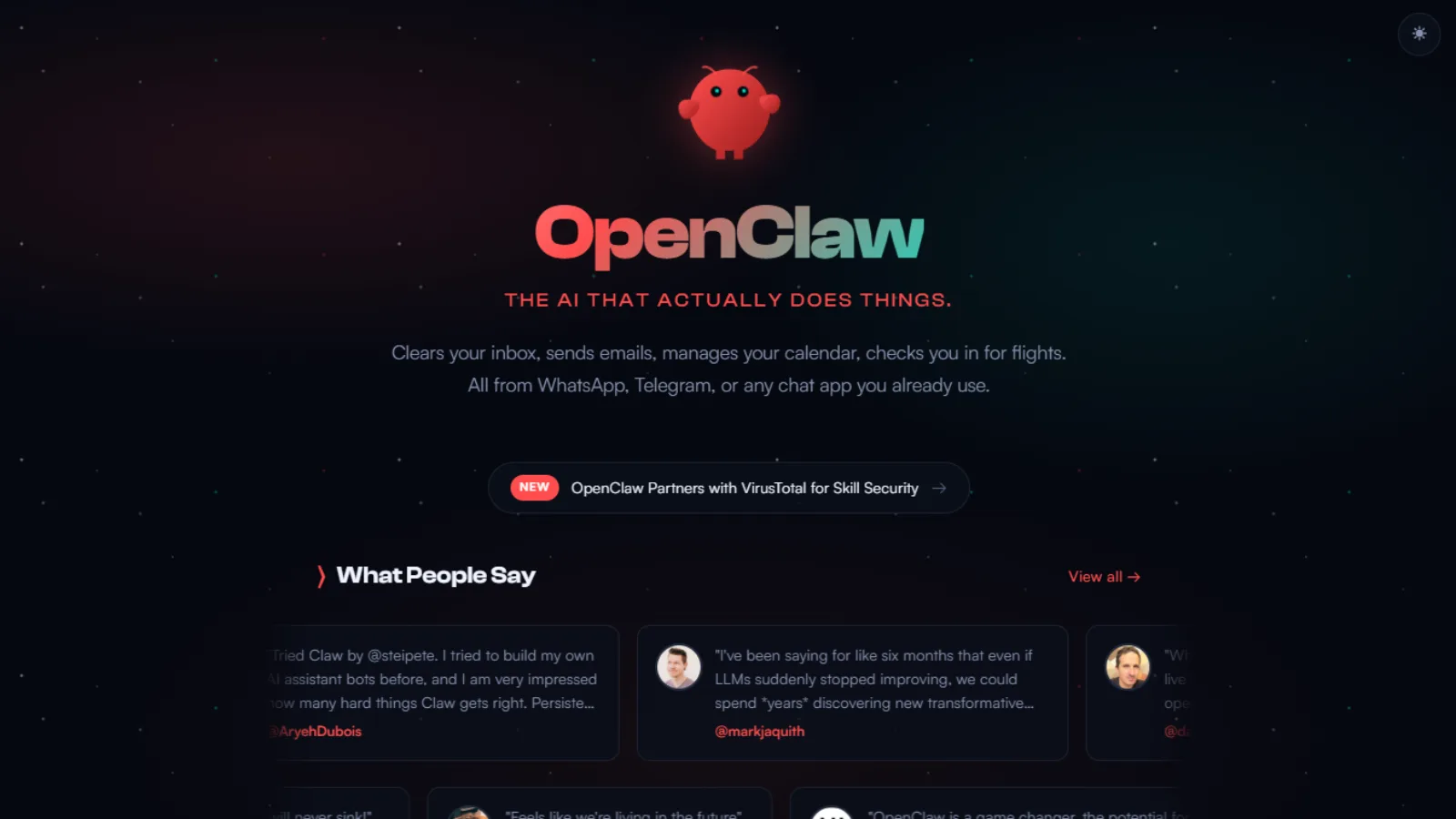
Before we get into the setup specifics, it helps to understand what OpenClaw actually is, because the name doesn’t fully capture the scope.
OpenClaw (previously known as ClawdBot and MoltBot, same codebase, multiple rebrands due to trademark issues) is an open-source, autonomous AI gateway. It connects large language models like Claude, GPT-4o, or Gemini to your local system and your favorite messaging platforms, then executes real tasks on your behalf. We’re talking about summarizing emails, running terminal commands, managing calendars, and interacting with files, all triggered from a simple message on your phone.
The project gained viral traction in late 2025 because it filled a gap that nothing else was filling: the bridge between a powerful AI model and real-world execution on your own hardware. It’s private, extensible, and completely under your control.
Now, with that foundation in place, let’s talk about getting it running.
System Requirements Before You Touch Anything
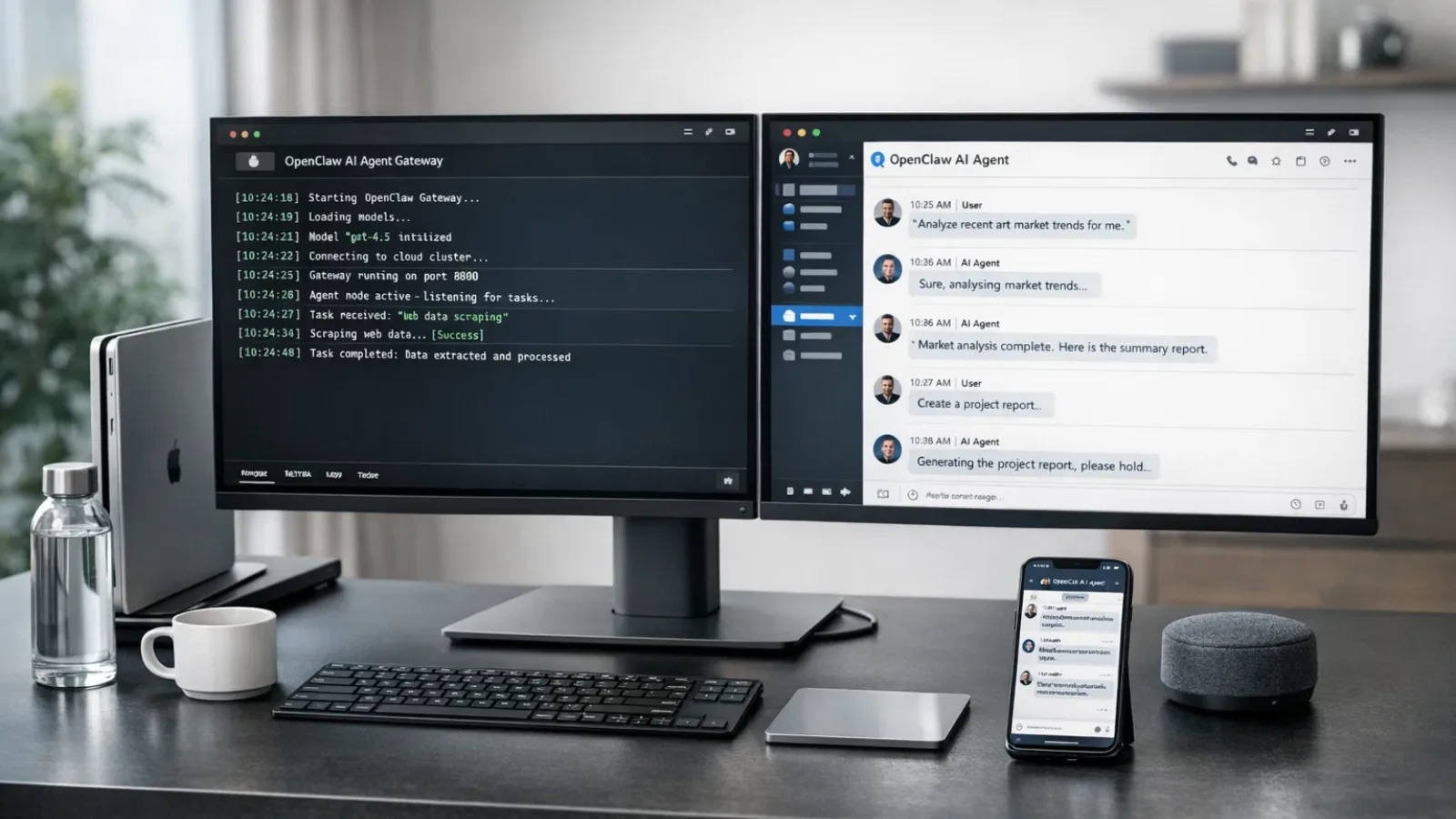
Getting OpenClaw installation right starts before you open a single terminal window. Here’s what you need across any environment:
- Node.js v22 or higher, the engine running the OpenClaw service. Outdated versions cause gateway startup failures.
- Minimum 4GB RAM (8GB recommended for a “forever-on” assistant)
- macOS, Linux, or Windows (Windows via WSL2 strongly preferred)
- Active internet connection for API communication with your chosen AI provider
The core installation command across macOS and Linux is the same one-liner:
curl -fsSL https://openclaw.ai/install.sh | bash
On Windows PowerShell, you’d use:
iwr -useb https://openclaw.ai/install.ps1 | iex
Though honestly, and I’ll repeat this several times, don’t do native Windows installation if you can avoid it. WSL2 is the way to go.
With requirements sorted, let’s walk through every device setup I actually ran.
Device 1 & 2: Mac (M2) and Windows 11 PC
Starting with the most common machines people already own.
Mac M2 was the smoothest experience of all ten. Open Terminal, run the one-liner, and the script automatically detects your OS, checks Node.js, and installs everything into ~/.openclaw. After that, openclaw onboard launches an interactive wizard that walks you through provider selection and messaging platform linking. I had it fully operational in under 12 minutes.
Windows 11 is a different story. Attempting native installation is technically possible but leads to instability. The recommended path, and the one I used, is installing WSL2 first via wsl –install in PowerShell, then running the Linux one-liner inside the Ubuntu environment. Once inside WSL2, the experience mirrors Linux installation almost exactly.
Devices 3, 4, and 5: Cloud VPS (DigitalOcean, AWS, Oracle)
This is where OpenClaw really starts to shine, because cloud deployment is what gives you the “always-on” agent experience without taxing your personal machine.
DigitalOcean offers the fastest path with its 1-Click Marketplace image. Spin up a droplet with at least 4GB of RAM, select the OpenClaw image, and you’re running in minutes. No manual script execution needed. I used a basic $24/month droplet, and it handled everything without breaking a sweat.
AWS Free Tier (m7i-flex.large) and Oracle Cloud’s “Always Free” instances are solid budget alternatives. Both require running the standard Linux installation script manually after provisioning, but the process is identical to local Linux setup once you’re SSH’d in.
For teams or businesses that want this kind of persistent, cloud-deployed AI agent without the infrastructure headache, this is exactly where a service like Globussoft AI’s OpenClaw Gateway Setup becomes genuinely valuable. Their team handles the full deployment, connecting WhatsApp, Telegram, Slack, Discord, Signal, and 15+ other platforms to your AI model of choice, so you skip the configuration rabbit hole entirely and move straight to using the agent.
Also Read
OpenClaw Consulting Services: What Companies Actually Pay For
GlobussoftAI OpenClaw Services: Professional Installation & Custom Development
Device 6: QNAP NAS
This one required a bit more creativity, but it works beautifully for anyone running a home lab.
The trick with QNAP is that OpenClaw doesn’t install directly on QNAP OS. Instead, you use the App Center to set up Ubuntu Linux Station, which creates a Linux environment on the NAS. From there, you run the standard Linux installation script inside Ubuntu, and it behaves exactly like a dedicated Linux server.
I’d recommend keeping the OpenClaw working directory isolated from your main NAS file storage. The last thing you want is an autonomous agent with accidental access to your personal photo library.
Device 7: Synology NAS via Docker
Synology handles this more elegantly through Container Station. Pull the official OpenClaw Docker image and deploy it as an isolated container. Docker deployment on any platform follows this general pattern: clone the repository and run docker-compose to spin up the containerized environment.
The container approach is actually my preferred method for NAS devices because it keeps OpenClaw completely sandboxed from the underlying system, which matters a lot when you’re running an agent that can execute terminal commands.
Device 8: Old Laptop Running Ubuntu
Got a laptop collecting dust? This is one of the most satisfying deployments.
Reformat with Ubuntu 24.04, run the Linux one-liner, and you have a dedicated 24/7 AI assistant running on hardware you already own. I used a 2015 ThinkPad with 8GB of RAM, and it handled everything comfortably. Power consumption is low, and the machine runs silently in the corner, doing actual work.
The openclaw gateway start daemon flag is essential here; it keeps the service alive even after you close the terminal session.
Device 9: NVIDIA RTX GPU (Local AI Runtime via Ollama)
This is the setup for anyone who wants 100% privacy and zero API costs, running everything locally.
OpenClaw integrates with Ollama, which lets you run capable open-source models directly on your machine. If you have Ollama installed, the setup is a single command:
ollama launch openclaw –model <model-name>
For high-performance local execution on NVIDIA RTX hardware, NVIDIA’s DGX Spark guide covers the GPU-specific configuration. The tradeoff is that response speed depends heavily on your GPU VRAM, 16GB or more gives you a comfortable experience with modern models.
This is where Globussoft AI’s Custom AI Agent Development offering becomes relevant. If you’re building something more sophisticated than a personal assistant, purpose-built autonomous agents for specific workflows, powered by GPT-4, Claude, Llama, or Gemini, built on frameworks like LangChain, CrewAI, AutoGen, or LangGraph with RAG capabilities, their team designs these from the ground up to match your actual business logic.
Device 10: Android Phone via Termux
This one surprised me the most. An old Android phone running Termux can genuinely host an OpenClaw gateway.
Install Termux from the app store, install Node.js inside it, and then run the OpenClaw installation script. The phone acts as a local gateway, has low power consumption, and is always connected to your home WiFi. It won’t win any performance awards, but for managing a lightweight agent that routes messages and handles simple tasks, it works.
Where Most People Get Stuck
Here’s the reality: installing OpenClaw is not the hard part. Configuring it properly is.
Connecting messaging platforms, securing API keys, setting up sandboxing, and ensuring stable uptime quickly becomes overwhelming, especially for teams trying to use it beyond experimentation.
This is exactly where structured deployment starts to matter.
Globussoft AI: Turning OpenClaw Into a Production System
 At some point, the question shifts from “Can I run OpenClaw?” to “Can I rely on it daily?”
That’s where Globussoft AI comes in. Instead of treating OpenClaw as a DIY experiment, they focus on making it a stable, scalable system built around real workflows.
Their approach isn’t just setup, it’s full ecosystem design:
⚡ OpenClaw Gateway Setup
They handle complete deployment of the OpenClaw AI assistant gateway, connecting it seamlessly with platforms like WhatsApp, Telegram, Slack, Discord, Signal, and more than 15 other integrations.
The setup is local-first and privacy-focused, meaning your data stays under your control while your AI agent stays accessible across all communication channels.
🧠 Custom AI Agent Development
Not every workflow fits a generic assistant. That’s why they build purpose-driven AI agents powered by models like GPT-4, Claude, Llama, Gemini, or even local models via Ollama.
These agents are designed using frameworks like LangChain, CrewAI, AutoGen, LangGraph, and RAG systems to match how your business actually operates.
🔗 Multi-Agent Orchestration
For more advanced use cases, they architect systems where multiple AI agents collaborate.
Instead of one assistant doing everything, specialized agents handle different tasks with structured routing, failover, and pipeline coordination. This is especially useful for teams managing multi-step workflows across departments.
Connecting Your Messaging Platform
Once the gateway is running, connecting to Telegram (the easiest starting point) takes four steps:
- Message @BotFather on Telegram, use /newbot to create your bot, and copy the API token it provides.
- Get your Telegram User ID from @userinfobot.
- Run openclaw onboard, select your messaging channel, and paste both the token and your user ID when prompted.
- Restart the gateway with openclaw gateway start.
Your bot is now live and listening. WhatsApp, Slack, Discord, and Signal follow similar patterns, each with its own authentication methods.
Security: Don’t Skip This Section
Because OpenClaw can run terminal commands and access your files, the OpenClaw security considerations are serious and non-negotiable.
Never run OpenClaw as root or administrator. If a vulnerability were ever exploited, you’d be handing an attacker full system access. Always use a dedicated, non-privileged service account.
Enable sandbox mode in your configuration (sandbox_mode: true) to isolate destructive commands like rm until you’re confident in the agent’s behavior.
Never expose port 18789 to the open internet. Use Tailscale for encrypted tunneling to your dashboard instead.
Treat your API keys and bot tokens like passwords. They are the keys to your AI infrastructure and your billing accounts. Keep them out of public repositories and screenshots.
Security-conscious deployment is also central to what Globussoft AI’s Multi-Agent Orchestration service focuses on, architecting systems where specialized agents collaborate across departments, with proper routing, failover, and pipeline controls baked in from the start rather than bolted on afterward.
Choosing Your AI Provider
OpenClaw is model-agnostic; it’s the shell, not the intelligence. During onboarding, you pick the brain:
- Anthropic Claude, widely regarded as the best model for agentic, instruction-following tasks
- Google Gemini, generous free tiers, good for getting started
- OpenAI GPT-4o, reliable all-rounder
- Ollama (local models), best for privacy, requires significant GPU resources
Each has different authentication flows; Claude and OpenAI require API keys from their developer consoles, while Gemini supports OAuth through your Google account.
FAQs
What is OpenClaw used for?
OpenClaw is a local-first AI agent framework that connects large language models to your hardware and messaging platforms. It automates tasks like email triage, calendar management, file operations, and system commands, all triggered through apps like Telegram, WhatsApp, or Slack.
Is OpenClaw the same as ClawdBot or MoltBot?
Yes. The project has gone through two rebrands due to trademark issues, but the codebase is continuous and unified. All current documentation and binaries operate under the OpenClaw name as of early 2026.
What are the minimum hardware requirements for OpenClaw installation?
Minimum 4GB of RAM, with 8GB recommended for smooth, always-on operation. You also need Node.js v22+ and a macOS, Linux, or Windows (WSL2) environment.
Is it safe to install OpenClaw on my main computer?
Security experts from Malwarebytes and The Verge advise against it. Use a dedicated VPS, a sandboxed VM, or a separate physical machine instead. This limits the potential impact if something goes wrong.
Can OpenClaw run without an internet connection?
Partially. Using Ollama with local models, OpenClaw can operate without connecting to external APIs. However, messaging platform integrations like Telegram still require internet connectivity.
How does Globussoft AI help with OpenClaw setup?
Globussoft AI offers full OpenClaw Gateway deployment connecting your agent to WhatsApp, Telegram, Slack, Discord, Signal, and 15+ other platforms, along with custom AI agent development and multi-agent orchestration for businesses that need production-grade autonomous systems rather than personal-use setups.
Can I run multiple AI agents simultaneously with OpenClaw?
Yes. As you get more advanced, OpenClaw supports “Agent Swarms” multiple instances working together on a shared project. This is also the foundation for multi-agent orchestration systems, where specialized agents handle different parts of a workflow in coordination.