
If you’re trying to run OpenClaw on a Mac, you’re probably looking for a smooth setup without endless trial and error. While the tool works well on many systems, macOS users often face unique compatibility and configuration challenges.
This guide breaks everything down in a simple, practical way. From understanding system requirements to completing a clean OpenClaw installation, we’ll walk through each step carefully. You’ll also learn how to handle common errors and improve performance.
Whether you’re on a MacBook or configuring OpenClaw on a Mac mini, the installation process is largely the same. A few hardware-specific considerations aside, this guide keeps things simple: clear steps, no jargon, just everything you need to get up and running.
You can listen to this Blog here.
System Requirements for macOS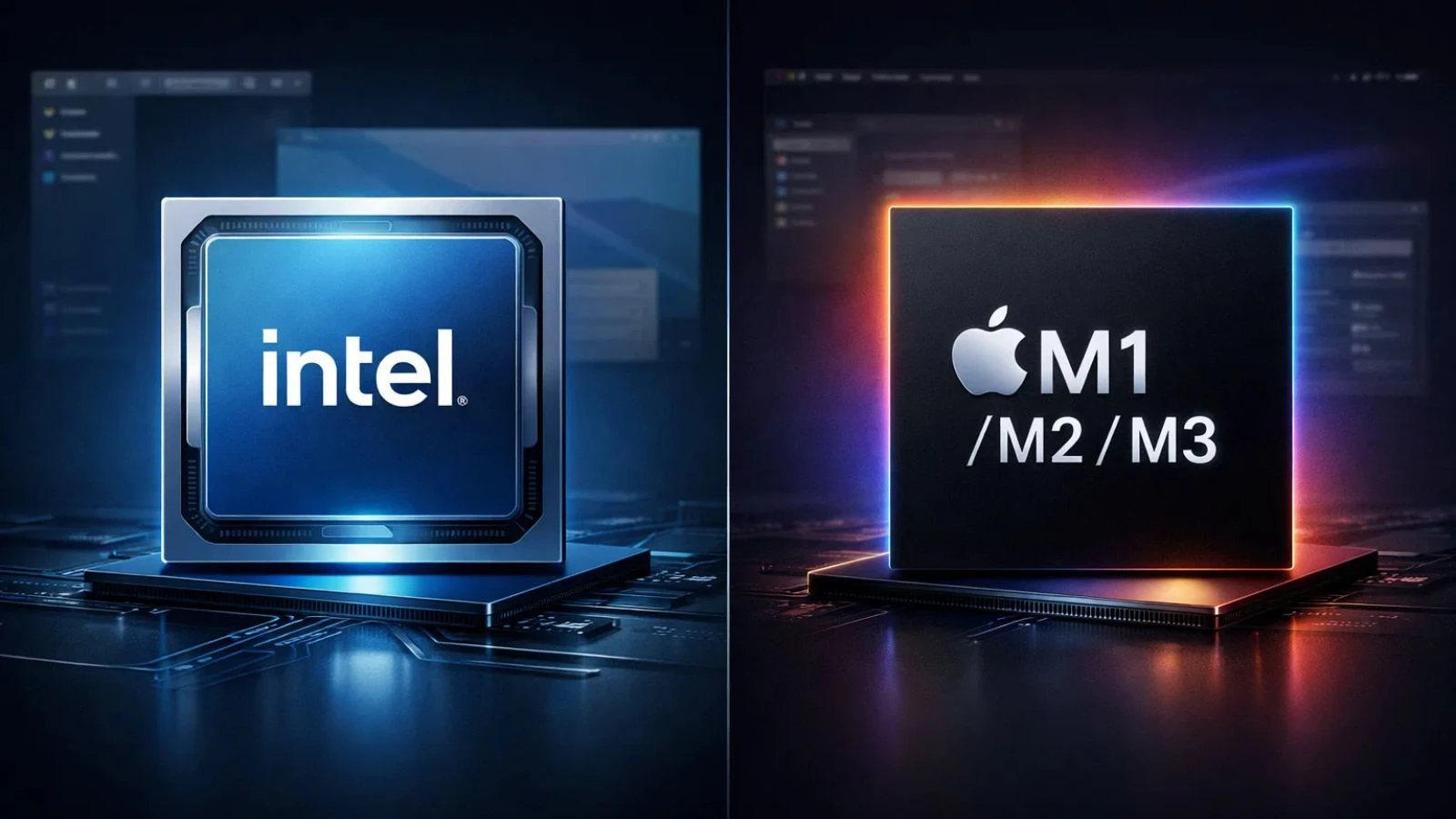
Before starting your OpenClaw journey, it’s important to confirm that your Mac meets the basic requirements. While the engine isn’t extremely demanding, macOS compatibility can vary depending on your version and hardware.
Minimum Requirements
- macOS 11 (Big Sur) or later recommended
- 4GB RAM minimum (8GB preferred)
- At least 2GB of free storage
- Intel or Apple Silicon (M1/M2/M3) processor
For users planning to run OpenCLaw on macos with smoother performance, having updated graphics drivers and the latest system patches helps avoid unexpected crashes.
Intel vs Apple Silicon
If you’re using an Intel-based Mac, compatibility is usually straightforward. For Apple Silicon (M1/M2/M3), you may need Rosetta 2 for certain builds. Some users report smoother performance on optimized native builds, so always download the latest compatible version.
Storage and Permissions
macOS security settings sometimes block third-party apps. After OpenClaw installation, you may need to allow the app manually under:
System Settings → Privacy & Security → Allow Anyway
Confirming these basics first saves you from troubleshooting later.
OpenClaw Installation Guide
Installing OpenClaw on macOS is straightforward if you follow the right steps. Below is a clean and simple OpenClaw installation process to avoid common errors.
Step 1: Download the Correct Build
Always download the latest macOS-compatible version from the official source. Make sure you select the correct build for:
- Intel Macs
- Apple Silicon (M1/M2/M3)
Using the wrong architecture version is one of the most common reasons the app fails to launch.
Step 2: Extract the Files
After downloading, unzip the file. Move the application folder into your Applications directory for easier access and proper system permissions.
Step 3: Handle Security Warnings
macOS may block the app the first time you open it. If you see a message saying the app cannot be opened:
- Go to System Settings → Privacy & Security
- Click “Allow Anyway.”
- Reopen the application
This step is normal when running third-party software.
Step 4: First Launch
Once opened, verify that all required files are properly loaded. If you see missing asset errors, double-check that the extracted folder structure remains intact.
After completing the installation, the next step is configuration and optimization for smoother performance.
OpenClaw Setup and Configuration
Once OpenClaw is installed, proper configuration ensures stable performance and fewer crashes. A correct OpenClaw setup makes a noticeable difference, especially on macOS.
Initial Configuration
When launching the app for the first time:
- Adjust resolution to match your display.
- Enable or disable full-screen depending on performance.
- Set audio preferences to avoid latency issues.
If you experience stuttering, lowering the resolution slightly can improve stability.
Controller and Keyboard Mapping
macOS usually detects standard USB or Bluetooth controllers automatically. If not, check:
System Settings → Bluetooth / Input Devices
Inside the app settings, customize key bindings to match your preferred controls. Saving your configuration file after changes prevents resets during updates.
File Structure Check
Make sure the data and asset folders remain in the correct directory. Many runtime errors happen because users accidentally move internal files during OpenCLAW installation.
Save Configuration
Before closing the app, confirm that settings are saved properly. If preferences reset on restart, check folder permissions and grant read/write access under Finder → Get Info.
Running on Mac Mini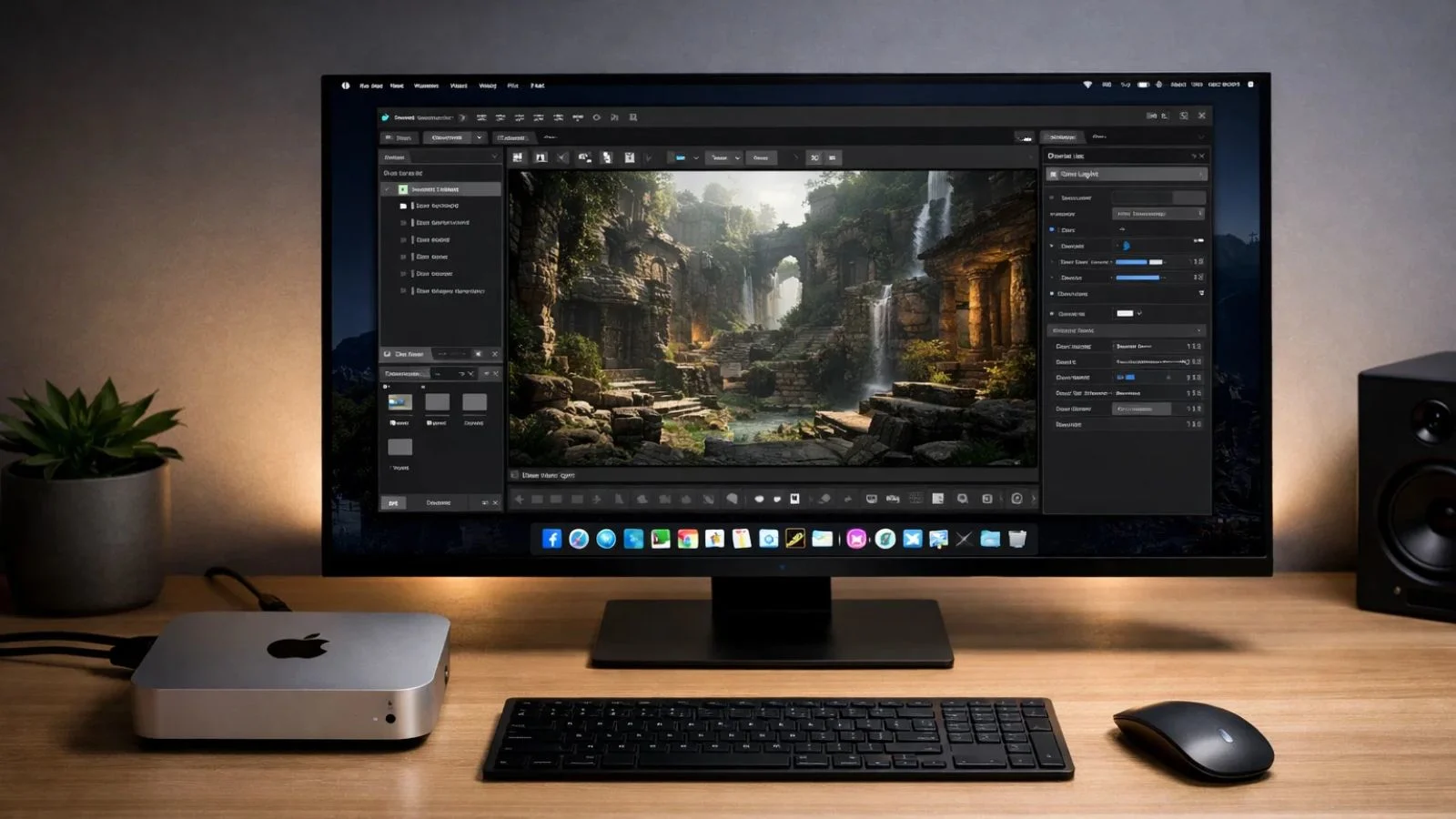
If you’re using an OpenCLaw Mac mini setup, performance can actually be very stable when configured correctly. Mac Mini systems, especially M-series models, handle lightweight game engines efficiently, but a few tweaks help optimize the experience.
Choose the Right Build
For Intel-based Mac Mini models, use the Intel-compatible version. For M1/M2/M3 models, choose the Apple Silicon build if available. Running through Rosetta 2 works, but native builds typically perform better.
Display Settings
Many Mac Mini users connect external monitors. If you notice lag or screen tearing:
- Reduce resolution slightly
- Disable full-screen mode
- Turn off background apps using Activity Monitor
External 4K displays can demand more resources than expected.
RAM and Background Apps
If your Mac Mini has 8GB RAM, close heavy applications like browsers with many tabs. Keeping system memory free improves stability during gameplay.
Thermal and Performance Stability
Mac Mini devices generally manage heat well, but long sessions can still warm the system. Ensure proper ventilation and avoid placing it in enclosed spaces.
With the right configuration, performance should be smooth and consistent.
Common Issues and Troubleshooting
Even after proper installation, you may run into minor issues while running OpenClaw on macOS. Most problems are easy to fix once you know what to check.
App Won’t Open
If the app refuses to launch:
- Go to System Settings → Privacy & Security
- Click Allow Anyway
- Try reopening the application
If that doesn’t work, right-click the app and select Open instead of double-clicking. This bypasses certain macOS restrictions.
Missing File or Asset Errors
This usually happens when the folder structure changes after OpenClaw installation. Make sure:
- All extracted files remain in the original directory
- No internal folders were renamed or moved
Re-extracting the download often solves the issue.
Performance Lag or Stuttering
If the app feels slow:
- Lower resolution in settings
- Close background applications
- Restart your Mac
For Apple Silicon users, verify you’re not running an incompatible build.
Controller Not Detecting
Check the Bluetooth or USB connection in macOS settings. If it’s connected but not responding inside the app, restart both the controller and the application.
Most issues are related to permissions, wrong builds, or system resource limits. Once those are fixed, performance is typically stable.
Performance Optimization Tips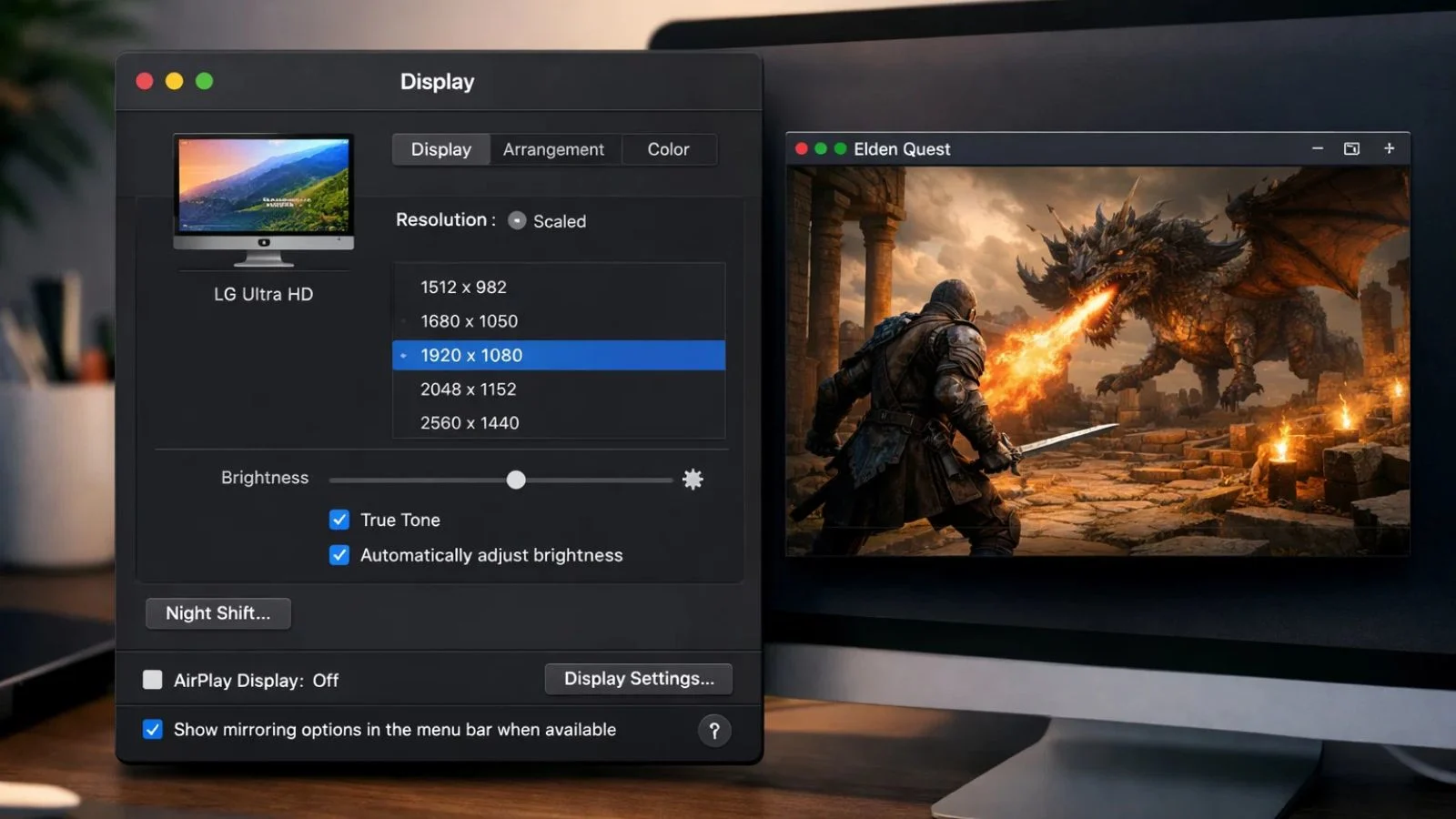
Once everything is running, a few small tweaks can make OpenClaw smoother and more stable on macOS.
Keep macOS Updated
Running the latest stable macOS version ensures better compatibility and fewer security-related launch issues. Updates often fix background system bugs that affect third-party apps.
Adjust Graphics Settings
If you notice frame drops:
- Lower resolution slightly
- Disable unnecessary visual effects
- Avoid running in high-resolution fullscreen on 4K displays
Small adjustments can significantly improve responsiveness.
Manage Background Processes
Open Activity Monitor and close heavy applications like browsers, video editors, or virtual machines. Freeing up RAM helps maintain consistent performance.
Use Native Builds When Possible
Apple Silicon users should prioritize native builds instead of relying on Rosetta. This improves efficiency and reduces CPU overhead.
Regular Clean Reinstall (If Needed)
If errors start appearing after updates or file changes, performing a clean reinstall can fix hidden conflicts. Remove the old folder completely before reinstalling.
With these best practices, your setup should remain stable long-term.
Security and Best Practices
When running OpenClaw on macOS, security should always be part of your routine. Since it’s third-party software, following a few safe practices helps prevent system issues.
Download Only from Trusted Sources
Avoid unofficial or modified builds. Always verify the source before starting an OpenCLAW installation. Corrupted or altered files can cause crashes or security risks.
Keep File Structure Clean
Do not mix files from different versions in the same folder. If you update, remove the older version completely before installing the new one.
Monitor Permissions
After installation, macOS may request access permissions. Only grant necessary permissions and review them under:
System Settings → Privacy & Security
Avoid System Modifications
Refrain from disabling macOS security features permanently just to run the app. Use the “Allow Anyway” option instead of changing global security settings.
Backup Configuration Files
If you customize settings during OpenCLAW setup, keep a backup copy of the configuration file. This saves time if you reinstall or migrate to another Mac.
Following these practices keeps your system secure while ensuring stable performance.
How GlobussoftAI Can Help
Setting up and optimizing tools like OpenClaw on macOS can sometimes require deeper technical understanding, especially when performance tuning or system-level adjustments are involved.
This is where GlobussoftAI adds value.
If you are a developer, startup founder, or tech team working with custom engines or performance-sensitive applications, GlobussoftAI provides AI-driven development support, automation solutions, and system optimization strategies. Instead of spending hours troubleshooting compatibility issues, you can streamline deployment and configuration with expert guidance.
Whether it’s improving application performance, optimizing workflows on macOS environments, or building AI-powered enhancements around your tools, their team focuses on scalable and efficient solutions.
For businesses that rely on performance-critical software, working with a specialized tech partner reduces downtime and speeds up execution.
Also Read,
Get OpenClaw Installed Professionally: Setup Services For Business
Can OpenClaw Be Enterprise-Grade? We Tested It for 6 Months
Conclusion
Running OpenClaw on macOS doesn’t have to be complicated. With the right system checks, proper installation steps, and smart configuration choices, you can achieve stable and smooth performance.
From choosing the correct build to completing a clean OpenCLAW setup, most issues come down to compatibility, permissions, or file structure mistakes. Once those are handled correctly, the experience becomes straightforward.
Mac Mini users can also expect solid performance with a few display and resource adjustments. And by following best practices like downloading from trusted sources and keeping configurations organized, you reduce the risk of crashes or system conflicts.
If you want deeper technical optimization or scalable performance solutions, partnering with experts like GlobussoftAI can make the process even more efficient.
FAQs
1. Can I run this on Apple Silicon Macs?
Yes. M1, M2, and M3 Macs can run it. Just make sure you download the correct architecture build or use Rosetta if required.
2. Why is the app blocked by macOS?
macOS often restricts third-party apps. You can allow it manually through Privacy & Security settings.
3. Does it work on Mac Mini?
Yes. An openclaw mac mini setup runs smoothly, especially on newer models with sufficient RAM.