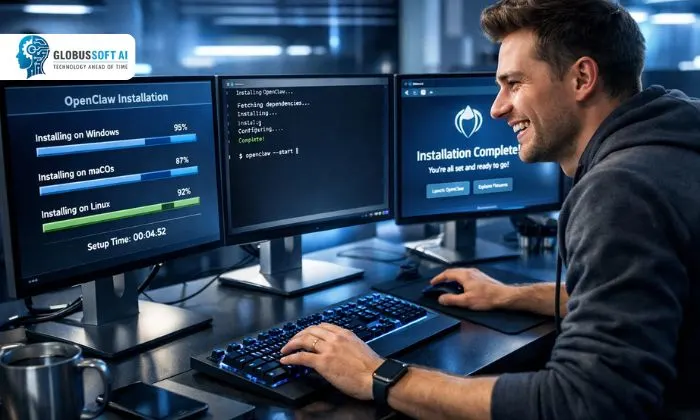
If you’ve been putting off setting up OpenClaw because it seemed complicated, today is the day that changes. It’s a modern, developer-friendly automation and data workflow framework that more teams are adopting every single month. The installation process is far simpler than most people expect; you can genuinely be up and running in five minutes or less.
This guide breaks the entire process down into clear, actionable steps for every major operating system. Whether you’re on Windows, macOS, or Linux, we’ve got you fully covered. Following this Custom OpenClaw Implementation guide, you’ll have a working environment ready to go, and you’ll wonder what took you so long to get started. Let’s dive straight in.
Listen To The Podcast Now!
Why Are Developers Switching to This Framework?
Before jumping into the installation steps, it’s worth taking a moment to understand what makes this tool stand out. At its core, it is an extensible automation framework built to help developers manage data pipelines, automate repetitive tasks, and create intelligent workflows, without painful configuration overhead.
It runs on a plugin-based architecture, which means you can expand its capabilities based on exactly what your project needs. The lightweight design keeps resource usage low, and the active developer community ensures steady updates and reliable documentation.
It integrates well with popular tools, works seamlessly inside Docker environments, and supports REST API hooks straight out of the box. Whether you’re a solo developer or part of a larger team, it fits naturally into most modern tech stacks and quickly becomes an indispensable part of your workflow toolkit.
Before You Begin: System Requirements and Prerequisites:
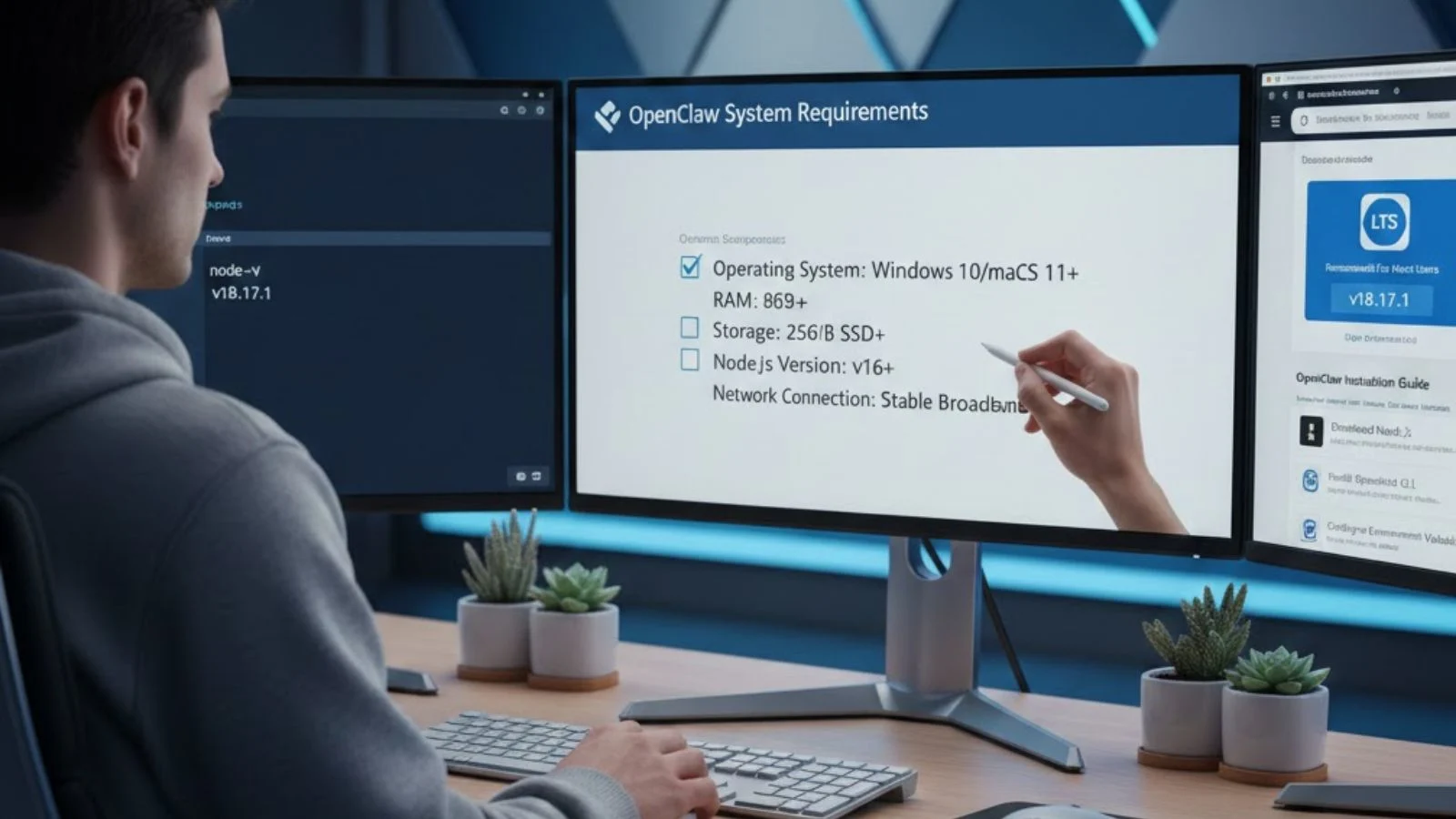
Before starting the OpenCLAW installation, getting your system ready from the start will save you from mid-install frustration. Here’s what you’ll need:
- Operating System: Windows 10/11, macOS 10.15 Catalina or later, or any modern Linux distribution
- RAM: Minimum 4GB (8GB recommended for data-heavy workflows)
- Storage: At least 500MB of free disk space
- Software: Node.js (v16 or later) and npm installed on your system
- Network: A stable internet connection to fetch dependencies during setup
To check if Node.js is already installed, open your terminal and run node -v. If you see a version number, you’re ready to go. If not, download the latest stable release from nodejs.org before moving forward. Once these requirements are confirmed, you’re set to install OpenClaw quickly and cleanly, without hitting any avoidable roadblocks.
Step-by-Step: OpenCLaw Window Installation:
The OpenCLaw Windows installation is refreshingly simple if you follow these steps in order.
Step 1: Open Command Prompt or PowerShell as Administrator. Right-click the Start menu and select “Windows Terminal (Admin)” or “PowerShell (Admin).”
Step 2: Run the Global Install Command
npm install -g openclaw
Step 3: Verify the Installation. Once the process finishes, confirm everything worked:
openclaw –version
Step 4: Initialize Your First Project. Run init my-project to scaffold your project folder.
Step 5: Start the Development Server. Run start inside your project directory to launch the local server.
And that’s it, your environment is live on Windows. If you run into a permissions error at any point, ensure you’re launching the terminal with admin rights. The vast majority of users complete this entire process in under three minutes.
Step-by-Step: MacOS OpenCLaw Installation:
The MacOS OpenCLaw installation is equally smooth, especially if you already have Homebrew available.
Step 1: Open Terminal. Find it via Spotlight Search (Cmd + Space, type “Terminal”) and launch it.
Step 2: Install Node.js via Homebrew (if not already installed)
brew install node
Step 3: Run the Install Command
npm install -g openclaw
Step 4: Confirm the Installation. Run the same—version flag to confirm the setup was successful.
Step 5: Create and Launch Your Project Run init my-project to create the project folder, then start inside it to launch the server.
If you prefer not to use Homebrew, simply download Node.js directly from nodejs.org and follow the same npm commands. It runs exceptionally well on macOS, and most users report a completely smooth, error-free setup experience on both Intel and Apple Silicon machines.
Post-Installation: Your First Workflow Setup:
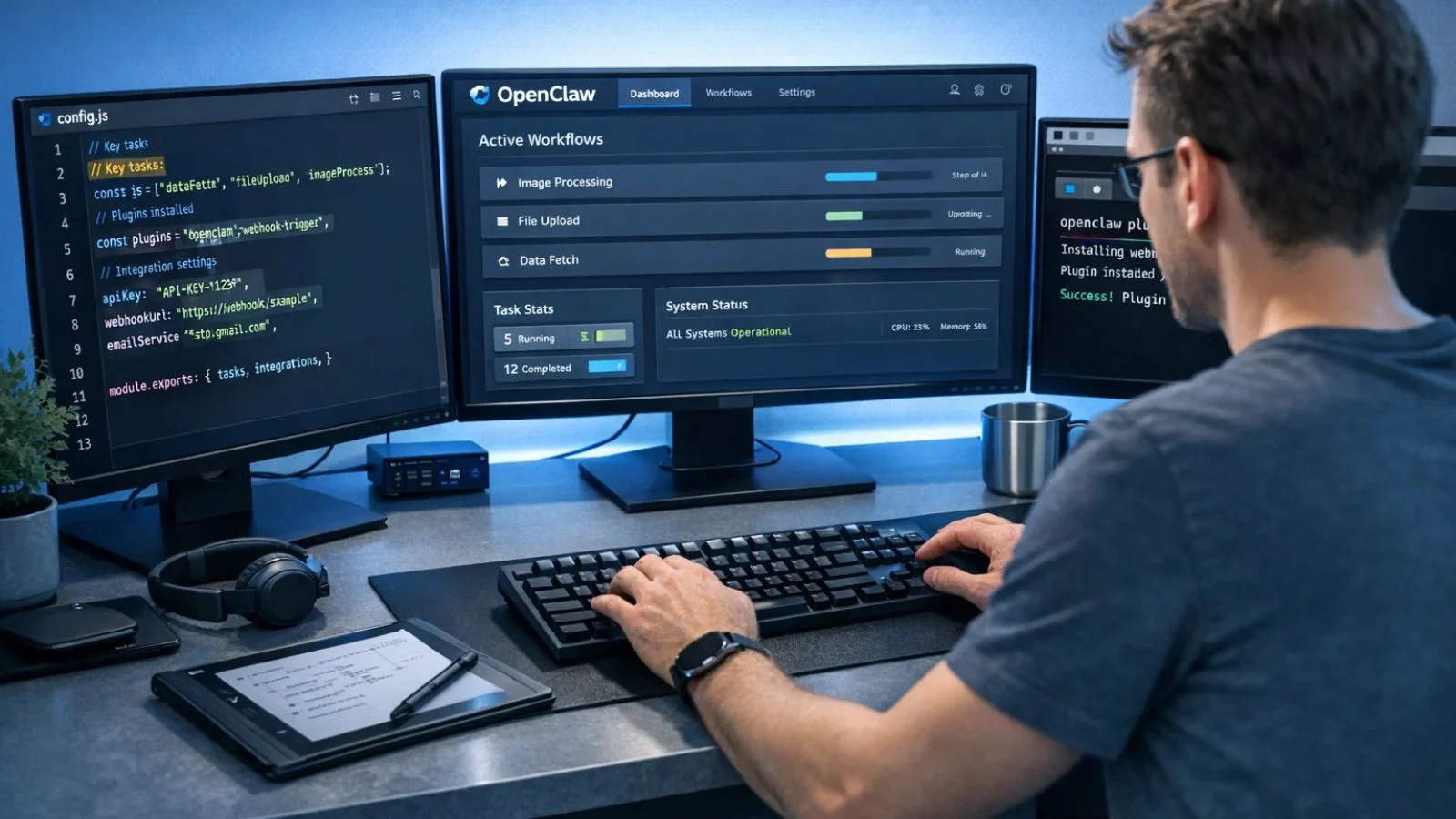
Now that the tool is successfully installed, it’s time to make it work for you. The first thing to explore is the configuration file automatically generated in your project folder, named config.js. This file is where it reads all its tasks, plugins, and integration settings.
A few quick wins to get you productive immediately:
- Enable auto-reload in the config file for a faster development cycle
- Add your first plugin using the built-in plugin add command
- Connect to your database or external API using the built-in connector modules
- Run the –help flag to see the full list of available commands and flags
The built-in dashboard, accessible at localhost:3000 by default, gives you a real-time view of all running workflows in a clean, visual interface. It’s intuitive enough for first-timers and powerful enough for experienced users. Spend ten minutes exploring it, and you’ll have a strong feel for how the framework manages and executes background tasks.
Troubleshooting Common Installation Issues:
Even a smooth process like this can throw the occasional curveball. Here are the most common issues users encounter and exactly how to resolve them.
- “Command not found” error after install. This almost always means npm’s global binary path isn’t registered in your system’s PATH variable. On Windows, restart PowerShell as admin and try again. On macOS or Linux, add the npm global path to your ~/.bashrc or ~/.zshrc file and reload the terminal.
- Permission denied on macO.S Avoid using sudo with npm installs, as this can cause deeper permission issues down the line. Instead, configure npm to use a user-writable directory by running npm config set prefix ‘~/.npm-global’ and then adding that directory to your PATH.
- Node.js version conflict: Older Node.js versions can cause compatibility issues. If you’re running anything below v16, use Node Version Manager (nvm) to install and switch to a supported version cleanly without affecting other projects on your machine.
- Install hangs or stalls mid-process. This is usually a network or registry timeout. Try switching to a faster npm mirror using npm config set registry- https://registry.npmjs.org/ and rerun the install command.
Also Read:
Custom OpenClaw Implementation: Enterprise Installation Support
Can OpenClaw Be Enterprise-Grade? We Tested It for 6 Months
Take Your Automation Further with GlobussoftAI:

Once you have the framework up and running, you might find yourself thinking bigger, about building truly intelligent, AI-driven automations rather than just task scripts. That’s exactly where GlobussoftAI comes in.
GlobussoftAI is an enterprise-grade Generative AI and Machine Learning services company that helps businesses build, deploy, and scale intelligent AI solutions. If you’re looking to extend your automation stack with AI capabilities, their team of specialists is exactly who you need.
What GlobussoftAI offers:
- AI Agent Development: Deploy intelligent agents that automate workflows and eliminate human error
- LLM-Powered Chatbots Context-aware bots that handle high-volume queries naturally and consistently
- LLM Testing & Fine-Tuning, Continuous model optimization tailored to your specific industry needs
- AI/ML Consulting: Strategic roadmapping to identify the highest-value AI opportunities in your business
- Fast & Seamless Deployment, 20% faster product delivery with minimal disruption to existing workflows
- End-to-End Support, Expert guidance from initial consultation through deployment and ongoing optimization
Visit Globussoft.AI to consult their GenAI specialists and explore how AI can transform what you’re building.
Conclusion:
Getting started with Openclaw is one of the quickest wins you can give yourself as a developer. Whether you’re on Windows or macOS, the entire setup takes under five minutes with just a handful of commands. The real value kicks in the moment you start building Openclaw workflows and connecting tools. If you ever hit a snag, the troubleshooting tips in this guide have you covered. Now that your environment is ready, go explore what this powerful framework can do for your projects and productivity.
FAQ’s:
Q1: Is Openclaw free to use?
Ans: Yes, it’s open-source and completely free for both personal and commercial use.
Q2: Can I use Openclaw on Linux?
Ans: Absolutely. The same global npm install command works on any Linux distro with Node.js v16 or later.
Q3: What if the CLI command isn’t recognized after installation?
Ans: It usually means npm’s global bin path isn’t in your PATH. Restart your terminal or manually add the npm global directory to your environment settings.
Q4: Do I need coding experience to get started?
Ans: Basic terminal knowledge is enough. The config files and documentation are beginner-friendly and easy to follow from day one.
Q5: Can I use it alongside other automation tools?
Ans: Yes, it supports REST APIs, plugin extensions, and Docker, making it easy to fit into any existing tech stack.