

Artificial intelligence is steadily changing how people use their computers. Tasks that once required switching between several apps can now be handled by software agents that automate actions behind the scenes.
One area where this shift is becoming noticeable is OpenClaw Windows setups. Instead of manually managing multiple tools, users can run an AI-powered assistant that performs tasks across apps automatically.
OpenClaw is one example of this shift. Instead of functioning only as a chatbot, it can perform actions on a computer, connect to messaging platforms, and run automated workflows in the background.
Interest in the project increased quickly in early 2026 when it gained hundreds of thousands of GitHub stars within a short period of time. Much of the attention comes from its ability to execute tasks rather than simply generate responses.
This guide explains what OpenClaw is, how it works in an OpenClaw Windows environment, how to install it, and what safety considerations users should understand before running it.
Hit ‘Play’ Button & Tune Into The Blog!
What Is OpenClaw?
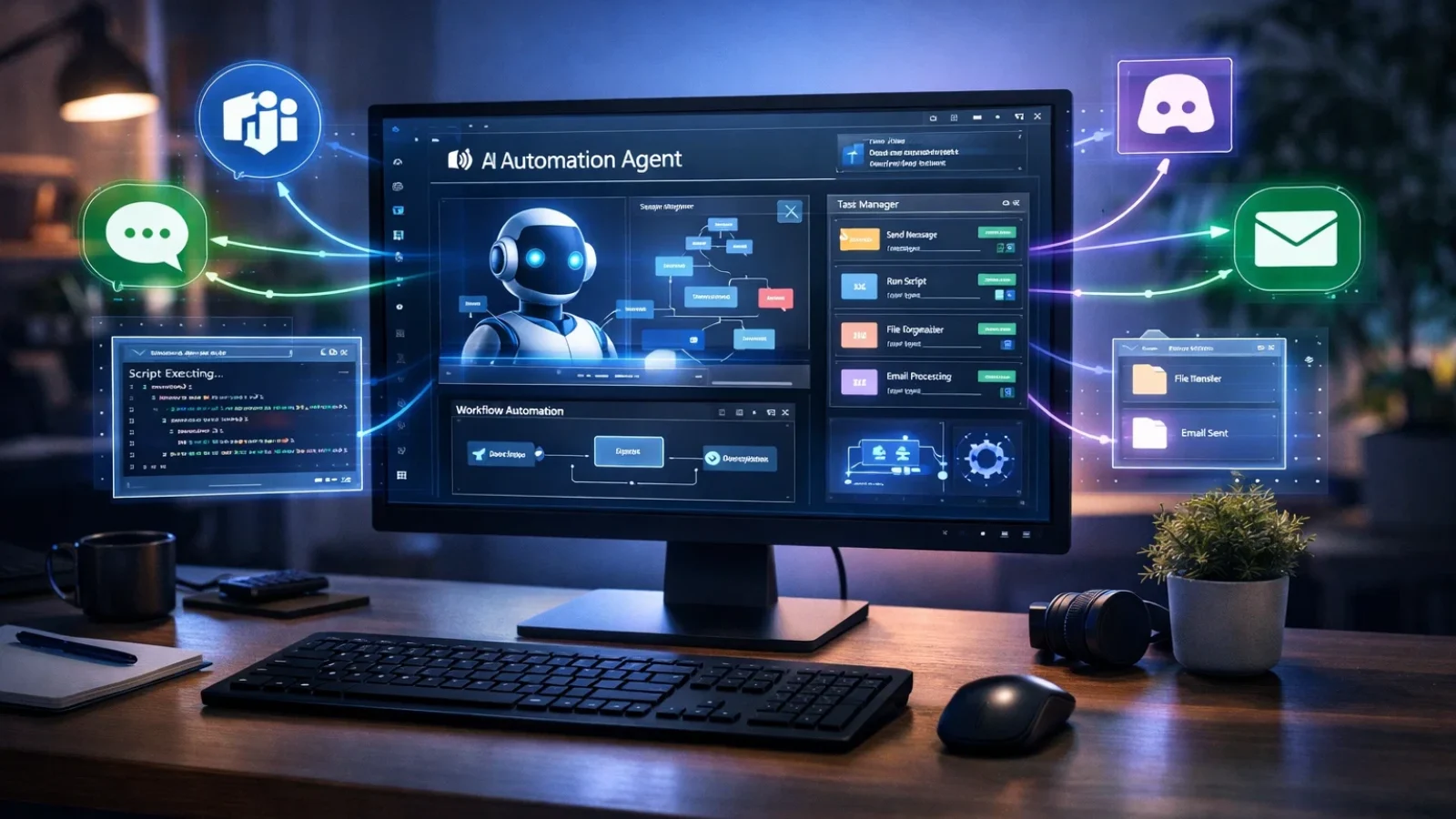
OpenClaw is a viral, open-source AI agent platform that runs locally on your machine or server, giving users full control over their data and workflows. Created by Peter Steinberger, the founder of PSPDFKit, it is designed to go beyond traditional chat-based AI tools.
Unlike standard chatbots, OpenClaw functions as an autonomous agent. It can read files, execute shell commands, and interact with everyday applications like WhatsApp and Discord. Connecting to powerful language models such as Claude or GPT via APIs, it enables users to automate complex, multi-step tasks with minimal manual input.
Because it is self-hosted and open-source, OpenClaw offers greater flexibility, privacy, and customization compared to many cloud-based AI solutions. This makes it especially appealing for developers, businesses, and power users who want to build, control, and automate workflows within their own environment.
How OpenClaw Works On Windows
OpenClaw on Windows is commonly used by developers who want to run an autonomous AI agent directly on their local system rather than relying entirely on cloud infrastructure. Running locally allows for greater control over data, system access, and customization.
The platform works by connecting an AI model to your local environment. It integrates with providers such as Anthropic, OpenAI, and DeepSeek via APIs or uses locally hosted models through Ollama. Once configured, OpenClaw can interpret instructions and take actions such as reading files, executing shell commands, running scripts, and interacting with supported applications.
What makes OpenClaw different from traditional chatbots is its ability to act, not just respond. Instead of only generating text, it performs real operations within the system, enabling end-to-end automation of workflows.
How OpenClaw Works: Architecture Overview
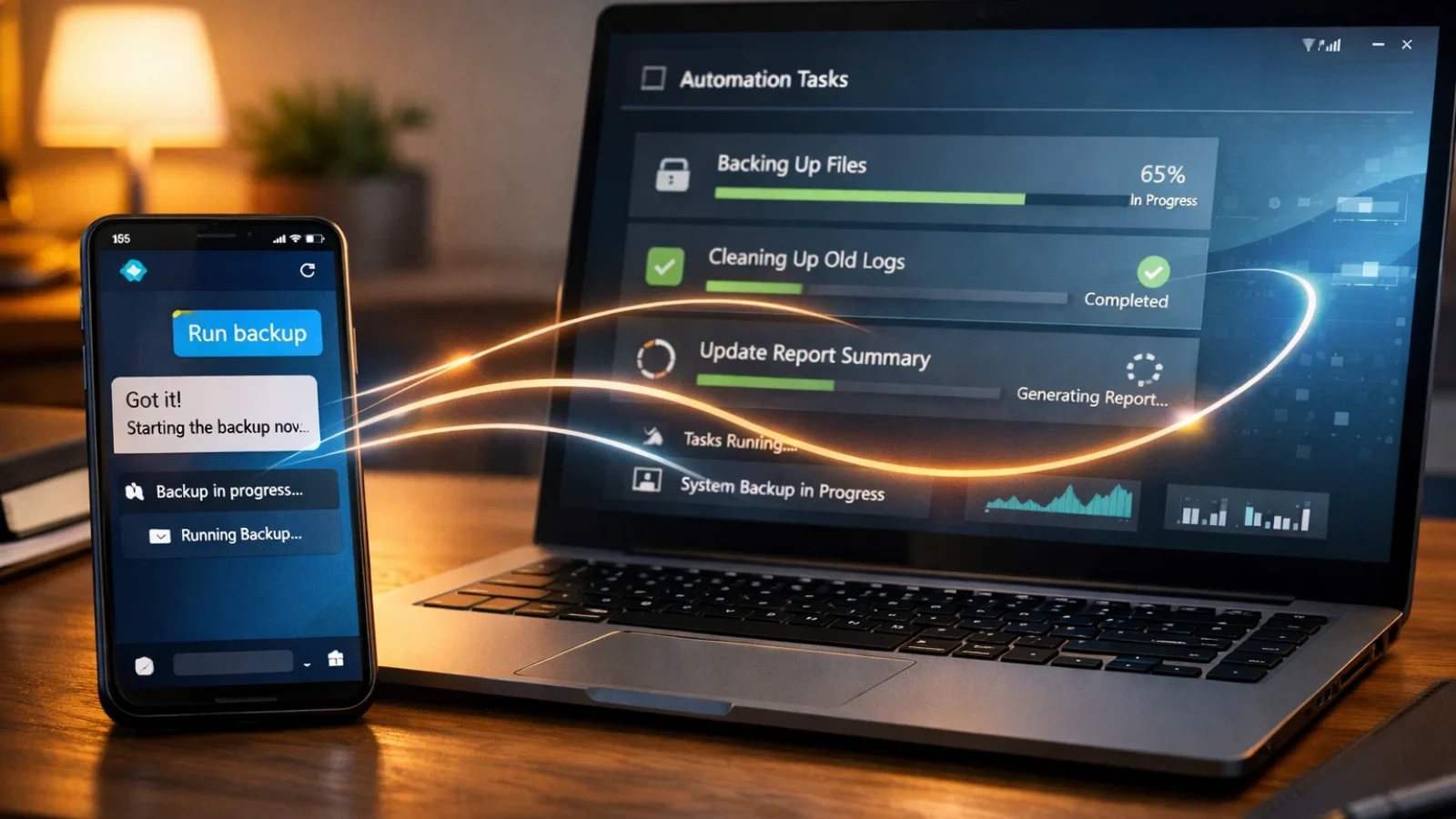
OpenClaw does not rely on a single terminal interface. Instead, it often interacts through messaging platforms. Users can send instructions to their agent through apps such as WhatsApp, Telegram, Discord, Slack, Signal, Microsoft Teams, Google Chat, or other supported services.
In many OpenClaw Windows setups, this means users can control their AI assistant directly from their phone or messaging apps.
When a message is received, OpenClaw processes the request, determines the intended task, and activates the appropriate tools or skills to carry out the action.
The Gateway
At the center of the system is a component called the Gateway. It acts as the control layer that manages communication between messaging channels, AI models, and automation tools.
When a user sends a message through a connected platform, the Gateway receives the request and routes it to the agent runtime.
Within an OpenClaw Windows configuration, the Gateway essentially acts as the system’s traffic controller.
Key Components
OpenClaw’s architecture typically includes several core components.
Gateway
The control system that manages sessions, routing, and communication between services. It usually runs locally and coordinates how messages and commands move through the system in an OpenClaw Windows environment.
Pi Agent
The runtime agent that communicates with the AI model. It interprets user requests and decides which actions should be executed.
Channels
Messaging platforms connected to the system, such as WhatsApp, Telegram, Discord, or Slack.
Skills
Modular capability extensions that give the agent new functions. For example, a skill may allow the agent to control a browser, access files, or interact with a specific productivity app.
ClawHub
A community registry where users can find and install additional skills built by other developers.
SOUL.md
A configuration file where users define the agent’s behavior, goals, and operating rules for their OpenClaw Windows setup.
Proactive Automation and Scheduled Tasks
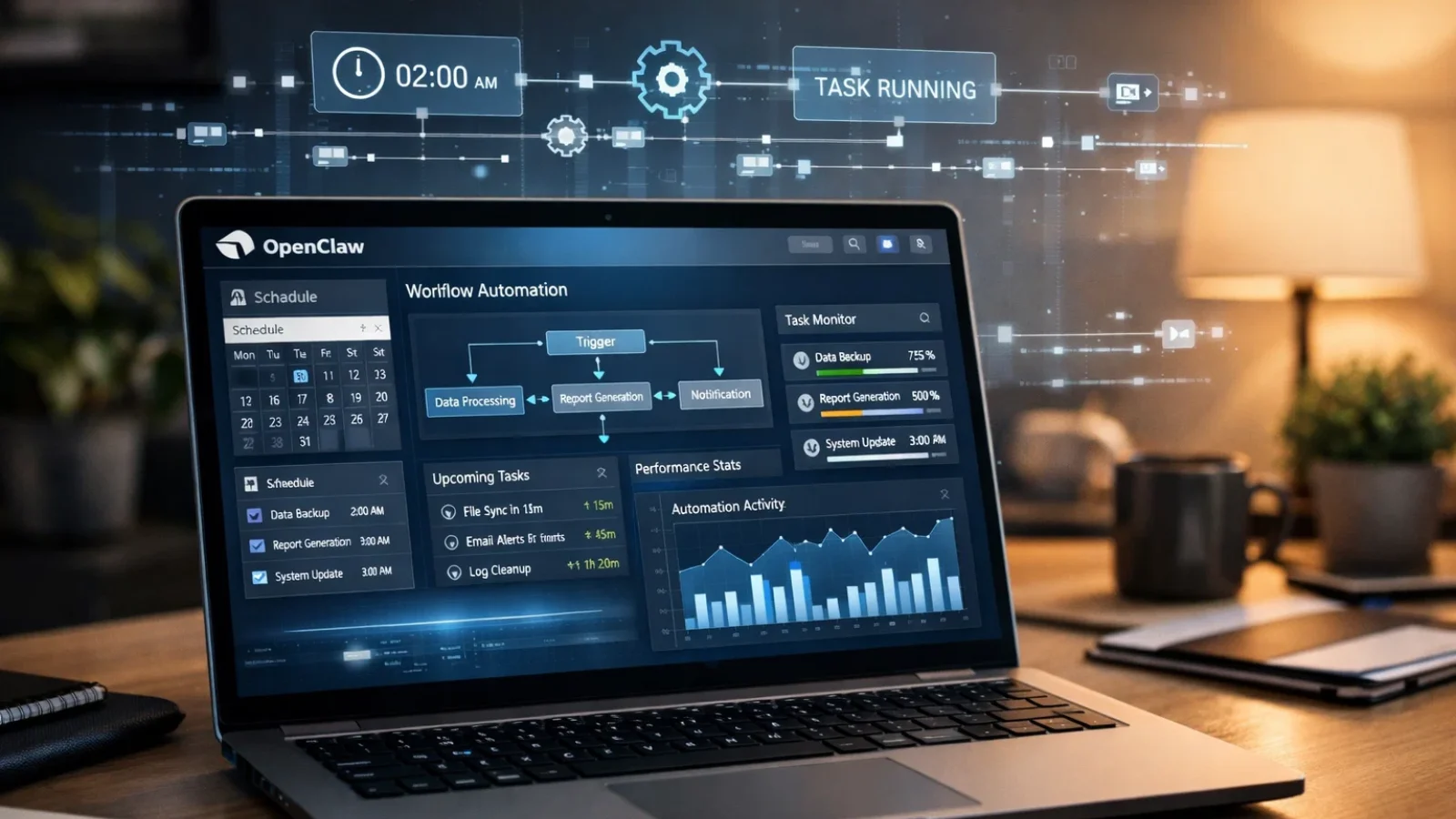
OpenClaw can run tasks automatically through scheduling systems and background monitoring.
For example, the system can perform actions on a schedule, check for new information, or send reminders at specific times. Some users configure it to run periodic scripts, monitor updates from data sources, or generate summaries of incoming information.
Many automation enthusiasts experimenting with OpenClaw Windows use these scheduling capabilities to build personal assistants that run continuously.
The level of automation depends entirely on how the agent is configured and which skills are installed.
Does OpenClaw Run on Windows?
Yes. OpenClaw can run on Windows, macOS, and Linux.
For many users, running OpenCLAW on Windows is one of the easiest ways to begin experimenting with AI agents locally.
The project provides an installer that attempts to set up the required dependencies automatically during an OpenCLAW Windows install process. Advanced users sometimes run the software inside container environments, but this is optional.
A desktop application designed for OpenClaw Windows environments is also being developed for several operating systems. At the time of writing, it is still described as being in beta.
System Requirements
The requirements can vary depending on how the agent is used and which models are connected. Typical guidelines include:
Operating System: Windows 10 or Windows 11
• RAM: 8 GB minimum, 16 GB recommended for heavier workloads
• Node.js: Installed automatically by the installer
• AI Provider API Key: From services such as Anthropic, OpenAI, DeepSeek, or a locally hosted model through Ollama
• Internet Connection: Required when using cloud AI providers
Users performing an OpenCLAW local installation with Ollama may not need internet access for inference once models are installed.
These requirements apply to most OpenClaw Windows environments.
How to Install OpenClaw on Windows
Understanding how to install OpenCLaw correctly helps avoid configuration problems later.
Step 1: Run the Installer
Open a terminal such as PowerShell and run:
curl -fsSL https://openclaw.ai/install.sh | bash
This command downloads the installer and begins the OpenCLAW Windows install process.
Step 2: Start the Onboarding Process
After installation, initialize the agent by running:
openclaw onboard –install-daemon
This launches an interactive setup process that helps configure the system in your OpenClaw Windows environment.
Step 3: Configure an AI Provider
OpenClaw can connect to several AI providers.
Common options include:
- Anthropic Claude
- OpenAI GPT models
- DeepSeek
- Ollama for locally hosted models
Each provider requires an API key or local model configuration.
Step 4: Customize the SOUL.md File
The SOUL.md file controls how the agent behaves.
Users can define preferences such as communication style, task priorities, and restrictions. For example, the configuration can instruct the agent to request confirmation before performing certain actions.
This configuration plays a major role in how an OpenClaw Windows assistant behaves.
Step 5: Start the Gateway
Launch the agent by running:
openclaw start
Once started, the Gateway begins listening for incoming instructions within your OpenClaw Windows environment.
Step 6: Connect Messaging Channels
Step 7: Install Skills
Skills extend the capabilities of the agent.
The ClawHub registry contains community-created skills covering areas such as:
• File management
• Browser automation
• Smart home integrations
• Productivity applications
• Developer tools
• Messaging and communication tasks
Many developers using OpenClaw Windows environments expand their agents’ functionality through these skills.
The number of available skills changes over time as developers publish new ones.
Example Use Cases
Personal Productivity
OpenClaw can assist with everyday organization tasks depending on its configuration.
Possible examples include summarizing emails, creating reminders, organizing notes, or managing calendars through messaging commands.
Developer Workflows
Developers sometimes use agent frameworks to automate repetitive technical tasks within OpenClaw Windows environments.
Examples may include running scripts, interacting with code repositories, executing scheduled jobs, or monitoring system processes.
Home Automation
When connected to compatible systems, agents can interact with smart devices and sensors.
For example, a configuration might adjust lighting or environmental settings through automation rules.
Research and Business Tasks
Some users configure agents to monitor information sources and generate summaries.
In other cases, workflows may involve gathering data from multiple services and organizing it into reports or notes.
The exact behavior depends on the skills installed and the instructions defined by the user.
Security Considerations
Running autonomous agents requires caution because they can access files, messaging systems, and external data sources.
Users running OpenClaw Windows should review permissions carefully and limit access wherever possible.
Prompt Injection Risks
Prompt injection is a known security concern in systems that process external content.
If an agent reads instructions embedded in emails, websites, or documents, it may interpret those instructions as valid commands unless safeguards are in place.
Security researchers have demonstrated situations where poorly designed skills exposed sensitive information or executed unintended actions.
Security Practices
Some commonly recommended precautions include:
• Start with read-only skills before granting write or execute permissions
• Run the agent under a dedicated operating system user account
• Use separate API keys with strict spending limits
• Restrict messaging access to specific user IDs
• Review the skill source code before installing
• Avoid storing passwords in configuration files
• Maintain logs of commands executed by the agent
• Mount sensitive files as read-only when possible
These practices help reduce potential risk when experimenting with OpenClaw Windows automation tools.
Read More –
Ollama OpenClaw Guide: How to Run Local AI Agents in 2026
Powerful Secret: Can OpenClaw App Transform Your Business?
Common Installation Issues
Installer Fails
If the installation script does not run correctly, check that curl is available in the terminal environment. PowerShell is often recommended on Windows systems.
Node.js Version Conflicts
Some systems already have Node.js installed. If version conflicts occur, users may need to remove the existing version or manage versions using tools such as nvm.
Messaging Channels Not Connecting
Connection failures often result from incorrect bot tokens or API credentials. Each messaging platform has its own setup process and documentation.
Unexpected Agent Behavior
If the agent performs actions that were not intended, review the configuration in SOUL.md and tighten restrictions.
Want OpenClaw Running Today? Globussoft Can Do It For You

Setting that up correctly takes more than running one command. You need to configure the Gateway port and bind address, generate and secure your auth token, connect each messaging channel individually, lock down access so the Gateway is never exposed to the open internet, and keep everything stable as OpenClaw updates rapidly.
That’s where GlobusSoft comes in.
GlobusSoftAI offers a full OpenClaw Gateway Setup service, complete deployment of your AI assistant gateway, handled end-to-end. You get a single AI agent connected across WhatsApp, Telegram, Slack, Discord, Signal, and 15+ other platforms, wired to the AI model of your choice, local-first, and self-hosted from day one.
What GlobusSoft handles for you:
• Gateway installation, daemon configuration, and health monitoring so your agent runs 24/7 without crashes
• Channel connections across WhatsApp, Telegram, Slack, Discord, Signal, and 15+ platforms, all routing through one agent
• AI model integration with Claude, GPT-4o, DeepSeek, Gemini, or a locally hosted Ollama model
• Auth token generation, Gateway binding to localhost, and security hardening so your agent is never exposed publicly
• SOUL.md setup tailored to your specific workflows and priorities
• Skill installation from ClawHub matched to your use case.
Final Thoughts
OpenClaw illustrates how AI agents can move beyond simple conversations and begin interacting directly with software systems.
Instead of asking for information and receiving a reply, users can configure agents to perform tasks, automate workflows, and respond to instructions through familiar messaging platforms.
For Windows users exploring OpenClaw Windows, installation is relatively straightforward and can often be completed in a few steps. As with any tool that has access to files, services, and automation capabilities, careful configuration and security awareness remain essential.
Frequently Asked Questions
Do I Need WSL2 to Run OpenClaw on Windows?
No. OpenClaw can run directly on Windows. Some users still choose container environments for development workflows, but they are not required.
Is OpenClaw Free?
OpenClaw itself is open source software released under the MIT license. Running the software is free, although costs may occur when using paid AI APIs.
Costs vary depending on the model provider and usage level.
Do I Need Coding Experience?
Basic familiarity with command-line tools can be helpful. Users who are not comfortable working with terminal commands should review documentation carefully before installing automation software.
What AI Models Does It Support?
OpenClaw is designed to be model-agnostic. It can connect to models from several providers as long as they are supported by the system or by Ollama for local execution.
Can It Run Continuously?
Continuous operation depends on where the software is hosted.
If installed on a remote server or dedicated machine, the agent can remain active as long as that system stays online.