
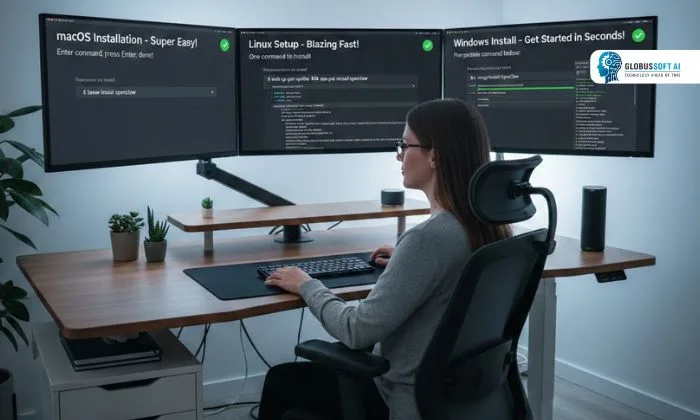
If you have been following the AI space lately, you have probably heard the buzz around Openclaw. It is a self-hosted, open-source AI agent that connects large language models directly to your local system and messaging platforms, and the best part? You can get it up and running in just minutes. Whether you are a developer looking to automate tasks, a power user wanting a personal assistant that never sleeps, or someone who just wants to experiment with AI on your own terms, this tool has something remarkable to offer. In this guide, we will walk you through a clear, step-by-step breakdown of how to install it on macOS, Linux, and Windows so you can hit the ground running without any guesswork.
Listen To The Podcast Now!
What Is Openclaw and Why Should You Care?
Prerequisites Before You Install OpenClaw:

Before diving into the platform-specific steps, there are a few things worth getting in order. First, you will need Node.js version 22 or higher, but do not worry if you do not have it, because the installer script will detect and handle it automatically. You will also need an API key from an LLM provider. Anthropic Claude (Pro or Max subscription) is strongly recommended, particularly with models like Opus 4.6 or Sonnet 4.6 for everyday tasks. One important safety note: this is powerful but experimental software. It is best installed on a dedicated VPS, virtual machine, or a clean device rather than your primary personal computer. Never expose the dashboard to the public internet without proper authentication in place.
macOS Installation Guide:
macOS is actually the most natural home for Openclaw. It was largely built with the Apple ecosystem in mind and supports integrations with apps like Notes, Reminders, and iMessage right out of the box.
For a smooth macOS OpenCLAW installation, open your Terminal and run the following one-liner:
bash
curl -fsSL https://openclaw.ai/install.sh | bash
The installer script handles everything; it detects your Node.js version, installs any missing dependencies, and launches the onboarding wizard automatically. From there, follow the prompts to:
- Select your LLM provider and paste your API key
- Choose your preferred model (Sonnet 4.6 is a solid default for most use cases)
- Connect your messaging channels, Telegram, iMessage, WhatsApp, and more
- Optionally install the companion menu bar app for quick macOS access
Once done, run the onboard daemon command to register it as a launchd service so it stays alive after every reboot.
OpenCLAW Linux Installation:
Linux is a fantastic platform for running an always-on AI agent, especially on a VPS. For OpenCLAW Linux installation on Ubuntu, Debian, or any standard distro, the process mirrors macOS almost exactly. Open your terminal and run:
bash
curl -fsSL https://openclaw.ai/install.sh | bash
The same onboarding wizard kicks in and guides you through every step. After completion, Openclaw registers itself as a systemd user service, meaning it restarts automatically after a reboot. For cloud or VPS hosting, always prefer a clean Ubuntu LTS base image over marketplace “1-click” setups to avoid dependency conflicts.
A clean OpenCLAW installation on Linux also benefits from a few simple firewall rules to reduce the attack surface and keep your agent safely contained:
bash
sudo ufw default deny incoming
sudo ufw allow 22/tcp
sudo ufw allow 80/tcp
sudo ufw allow 443/tcp
sudo ufw enable
Once running, use the built-in doctor command to verify that everything is healthy.
Windows Installation Guide:
Windows support is officially available, though the developers strongly recommend using WSL2 (Windows Subsystem for Linux) for the most stable experience. For a reliable openclaw window installation, start by enabling WSL2 if you have not already:
powershell
wsl –install
Once WSL2 is active, open a WSL terminal and run the standard install command:
bash
curl -fsSL https://openclaw.ai/install.sh | bash
Alternatively, a native PowerShell one-liner is available on the official website. It works reasonably well but may have occasional edge-case issues compared to WSL2. Follow the onboarding wizard exactly as described in the previous sections. Select your LLM, paste your API key, and connect your messaging platform of choice.
After setup, add the npm global bin path to your Windows PATH variable to ensure the gateway command is recognized across all terminals.
Post-Installation: Key Commands to Know:

Once installed, a few commands are worth bookmarking right away. Use the status command to confirm whether the gateway is active, and open the dashboard command to access the browser-based control UI where you can manage skills, view conversation history, and configure your settings.
If something feels off, the doctor command is your first troubleshooting stop; it diagnoses the most common configuration problems automatically. For real-time logs, the logs follow flag gives you a live stream of activity. You can also fire a direct agent command from the terminal to send a task instruction straight to your AI.
One healthy habit worth building early: Keep Openclaw updated regularly via npm, as new releases ship frequently and bring both features and important security patches.
Also Read:
Supercharge Your AI Journey With GlobussoftAI:

Once you have Openclaw running, you may find yourself wanting expert guidance to build something bigger, a production-grade AI workflow, an enterprise chatbot, or fully custom AI agents for your business. That is exactly where GlobussoftAI comes in.
GlobussoftAI is a certified Generative AI and ML services company that helps modern businesses design, build, and deploy intelligent AI solutions at scale. If you are exploring this tool for professional or enterprise use, their dedicated Clawbot Expert Service can help you get the most out of it with the right architecture and ongoing support.
Here is what GlobussoftAI brings to the table:
- AI Agent Development, Build intelligent agents that automate repetitive business tasks end-to-end
- LLM-Powered Chatbots: Deploy human-like chatbots with custom, industry-specific knowledge bases
- LLM Testing & Fine-Tuning: Continuously improve AI accuracy and relevance for your domain
- AI/ML Consulting, Get a clear, actionable strategy for AI adoption without the guesswork
- End-to-End Support From initial consultation to deployment and ongoing optimization
- 20% Faster Delivery, Agile, enterprise-grade execution with minimal disruption to existing workflows
Visit Globussoft.AI to consult with their GenAI specialists and start building smarter today.
Conclusion:
Openclaw is one of the simplest yet most powerful AI tools you can set up today. Whether you are on macOS, Linux, or Windows, a single terminal command and a few guided steps are all it takes to have your own always-on AI assistant up and running. Just treat security seriously, use dedicated hardware, keep it off public networks, and stay updated with the latest releases. Follow this guide step by step, and you will be fully operational in under 10 minutes.
FAQ’s:
Q1: Is this tool free to use?
Ans: Yes, the core software is completely open-source and free to download. However, if you choose to use a cloud-based LLM like Claude or OpenAI, you will need a paid API key from the respective provider.
Q2: Can it run on local AI models?
Ans: Absolutely. It fully supports local models through Ollama and LM Studio. If you have capable hardware, you can run it entirely offline with no cloud subscription required.
Q3: Is it safe to install on a personal laptop or PC?
Ans: The developers strongly advise against it. For the safest experience, always install on a dedicated VPS, virtual machine, or a clean physical device that does not hold personal or sensitive data.
Q4: How do I add new skills or capabilities after installation?
Ans: Navigate to the Skills section inside the browser dashboard. You can search, browse, and install new skills directly from there. Always vet community-built plugins carefully before installing to avoid security risks.
Q5: Which operating system works best with this tool?
Ans: macOS offers the smoothest experience due to its native ecosystem integrations. Linux is ideal for server or VPS deployments. Windows works well, too, but running it under WSL2 is strongly recommended for stability and performance.