

Businesses implementing AI services report up to a 40% reduction in operational costs and 30% increase in productivity. To add chat button your website, you’ll paste a tiny script from a chat tool into your site, set a greeting, and test on phones and desktops.
That’s the whole move in plain terms. In 2026, you can go from zero to live chat in under an hour. This guide shows you the steps, the gotchas to avoid, and how to pick a tool that fits your team. You’ll also see what to do in week one so chats turn into leads and happy users.
Moreover, you’ll learn how live agents, AI chatbots, and hybrid models differ. You’ll also see how to measure success with basic reports. Finally, you’ll get a short 30‑day plan you can follow without guesswork.
What Is a Chat Button and Why Does It Matter?
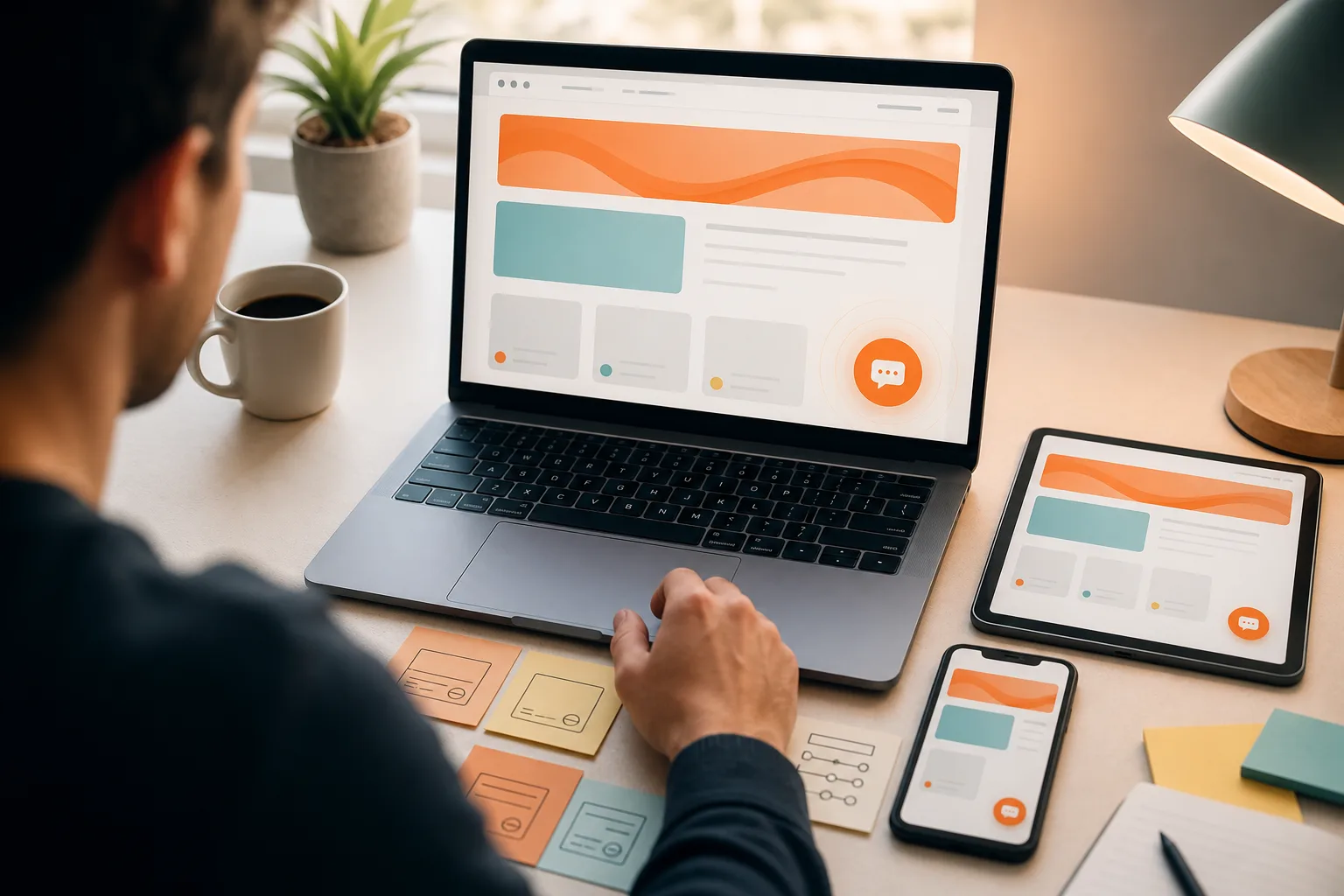
A chat button is the small bubble or icon that floats on the corner of your site or sits inside a page section. One click opens a chat window. There, a visitor can talk to a human, an AI bot, or both. When you add chat button your website, you give people a fast way to ask, “Is this right for me?” without hunting for a phone number or email.
There are three common types:
- Live chat: A person replies in real time during work hours.
- AI chatbot: A bot answers with trained content, FAQs, or documents.
- Hybrid: A bot handles first replies, then routes to a person when needed.
Each type has clear perks. Live chat builds trust fast and can feel personal. AI chatbots reply 24/7 and cut wait times to near zero. Hybrid blends speed with a human handoff for edge cases.
Key Benefits at a Glance
- Faster replies: Visitors get answers in seconds instead of long email threads.
- More leads: A quick chat lowers friction and boosts form fills and demos.
- Fewer support tickets: A bot can deflect simple questions before they hit your inbox.
Furthermore, a visible chat icon signals you’re available. As a result, users stay longer and bounce less. If you sell big‑ticket items, a chat can guide buyers and uncover needs. If you run support, it can triage issues and show order status.
“We used chat to meet users where they are. The result was shorter queues and clearer feedback.” — Product team lead
Finally, privacy and safety matter. Look for tools that offer end‑to‑end encryption and role‑based access controls. That way, your team can help users without putting data at risk.
How to Add a Chat Button to Your Website: Step-by-Step
You can set this up on any site, whether it’s WordPress, Shopify, Webflow, or a custom build. The process is similar across tools. Here’s the clean, tested path you can follow today.
First, define your goal. Second, choose a platform. Third, tailor the look and greeting. Fourth, place and trigger it.
Fifth, add the code. Sixth, test on phones and desktops. If you can paste a snippet, you can add chat button your website without a developer.
The 6 Steps
-
Define your goal
Decide if the button serves support, sales, or both. Write one sentence: “This chat’s job is X. -
Choose a platform
Pick live chat, AI chatbot, or hybrid. Shortlist two tools you can test this week. -
Customize appearance and greeting
Match your brand color, set an agent name, and write a friendly first line that fits your goal. -
Set triggers and placement
Choose bottom-right or bottom-left. Trigger on scroll depth or exit intent, not on page load. -
Install the code snippet
Paste the provider’s script before the closing body tag. Use async or defer to keep pages fast. See MDN: script loading strategies to avoid blocking your page. -
Test on mobile and desktop
Open incognito, clear cache, and test iOS, Android, and at least two browsers. Try slow 3G mode.
Why These Steps Work
- Clear goals keep scripts light and settings focused.
- Thoughtful triggers stop the chat from getting in the way.
- Async loading preserves Core Web Vitals, which keeps users from bouncing.

Therefore, start with a simple launch. Then add features like routing, tags, and saved replies. You can make big gains with small changes if you measure what users ask and where they click.
Also Read!
5 Common Chat Button Mistakes That Drive Visitors Away
Even good tools can hurt results if settings are off. The fixes below take minutes and prevent most drop‑offs. If you want to add chat button your website and keep users happy, start by avoiding these five traps.
-
Auto‑opening popups
Problem: The window opens at page load and blocks content.
Fix: Trigger after 20–30 seconds or 50% scroll. Better yet, wait for user hover or click. -
Poor mobile placement
Problem: The bubble covers “Add to cart” or cookie banners.
Fix: Move it to the opposite corner on small screens and add 16–24 px safe margins. -
No fallback when agents are offline
Problem: Chats go unanswered and users leave.
Fix: Switch to an AI bot or a form when offline. Set clear hours and an email capture. -
Generic greeting messages
Problem: “How can we help?” blends into background noise.
Fix: Use context: “Looking at pricing? I can explain plans in 30 seconds. -
Ignoring analytics and transcripts
Problem: You miss common questions and churn signals.
Fix: Tag top questions weekly, add a saved reply, and create one new help doc per theme.
Quick QA Checklist
- Does the chat load under 2 seconds on LTE?
- Is the button visible against your brand background?
- Are greetings tailored by page (home vs. pricing vs. docs)?
- Do offline hours switch to a form automatically?
Moreover, respect user choice. Let people minimize the widget and remember that state across pages. That small touch shows care and reduces friction.
Chat Button Tools and Platforms Worth Considering
You have three broad groups: free/open‑source, SaaS suites, and AI‑powered platforms. Each has pros and trade‑offs on cost, features, and setup time. If your goal is to add chat button your website on a tight budget, start in the free group, then move up as needs grow.
Free and Open-Source
- Chatwoot: Community‑driven, multi‑channel inbox, strong core features, fast setup.
- Tawk.to: Free plan, easy install, paid add‑ons for branding and staffing.
- Self‑hosted stacks: Full control, lower monthly spend, but you manage servers.
Cost: $0 for software; hosting may be $5–$10/month on a VPS.
Ease: Quick for basics; deeper tweaks need light dev time.
SaaS Suites
- Intercom, Drift, Crisp: Polished UI, rich routing, email and product tours.
- Strengths: Built‑in CRM fields, A/B tests, and advanced triggers.
- Trade‑off: Subscription costs rise with contacts and seats.
Cost: Starts lower, scales with usage.
Ease: Easiest to launch; vendor handles updates and uptime.
AI-Powered Options
- Hybrid chat: A bot answers first; a human steps in as needed.
- LLM support: Handles long, complex questions with natural replies.
- Data control: Fine‑tune on your docs, PDFs, and site content.
Tools like GlobussoftAI OpenClaw Services give teams self‑hosted control with an open‑source AI agent framework and chatbots powered by Large Language Models. The core framework is free, and a typical VPS costs around $5/month; total costs usually stay under $10/month with model usage. In addition, security‑focused setups with end‑to‑end encryption and role‑based access controls keep data safe. As social proof, OpenClaw reached 100,000 GitHub stars in under eight weeks, backed by over 1,000 hours of testing data.

Therefore, match the pick to your goal, budget, and tech comfort. If you need deep control and low cost, self‑hosted AI is attractive. If you need the fastest path with tours and email tied in, a SaaS suite fits.
What to Do After Your Chat Button Goes Live
Launch day is step one. The real gains come from one month of small tweaks. If you add chat button your website and then walk away, you miss the compounding wins.
Your 30-Day Plan
-
Monitor first‑week data
Track volume, first response time, and top three questions. Note pages with the most chats. -
Refine saved replies
Turn repeated answers into 3–5 clear replies. Keep each under 140 characters. -
Set routing rules
Send sales chats to sales; send account issues to support. Use office hours for each queue. -
A/B test button color and position
Run one test at a time for 7–14 days. Measure opens and starts, not just clicks. -
Create escalation paths
Define when a bot hands off to a person. Add a “Call me” or “Book time” link for complex cases. -
Schedule a 30‑day review
Look at tags, CSAT, and close rates. Archive dead replies and add one new help doc.
Furthermore, tighten privacy. Restrict dashboard access with roles and require MFA. With security‑focused setups that include encrypted communication and access control, your team helps users while protecting data.

Key Takeaways
- Paste one script, set smart triggers, and test on phones to go live in under an hour.
- Pick live, AI, or hybrid chat based on one clear goal and your team’s hours.
- Avoid auto‑open popups, bad mobile placement, and blank hours with no fallback.
- Choose tools by cost, data control, and setup time; in 2026, self‑hosted AI can stay under $10/month.
- Review chats weekly; small tweaks to greetings, routes, and replies compound results.
What to Do This Week
Start with a simple plan: choose one goal, shortlist two tools, and run a 7‑day test. Then, add the snippet, set gentle triggers, and write a crisp greeting for your top page. By week’s end, you’ll have real chat data and a faster path to help users, and you’ll be ready to add chat button your website to the rest of your pages with confidence.